


If you’ve ever tried to connect a printer, fix internet issues, or access your router settings, you’ve probably wondered: how to find my IP address?
An IP address is essential for identifying your device on a network. Whether you’re using a computer, smartphone, or smart device, knowing how to find your IP address can save you time and frustration.
At Tech Info Spot, we provide easy, step-by-step tech guides to help beginners and professionals solve problems quickly and efficiently.
In this complete guide, you’ll learn how to find IP addresses on computers, iPhone, Mac, router, printer, and more.
What Is an IP Address?

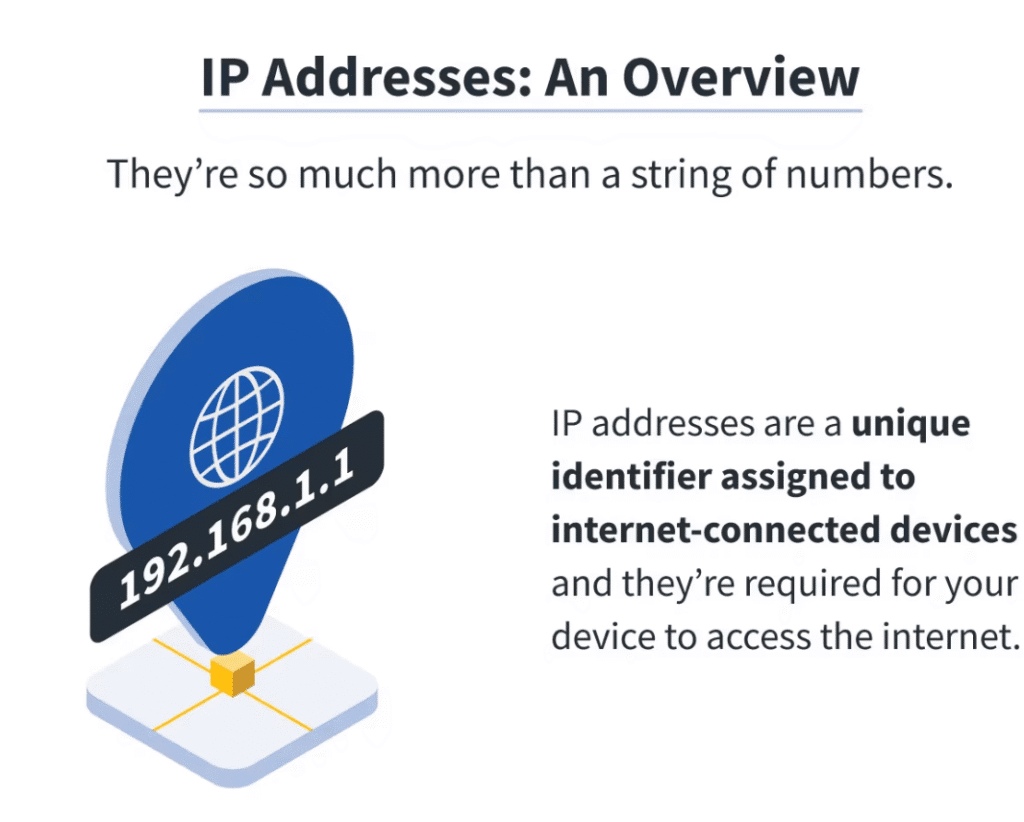
An IP (Internet Protocol) address is a unique number assigned to every device connected to a network.
Types of IP Addresses:

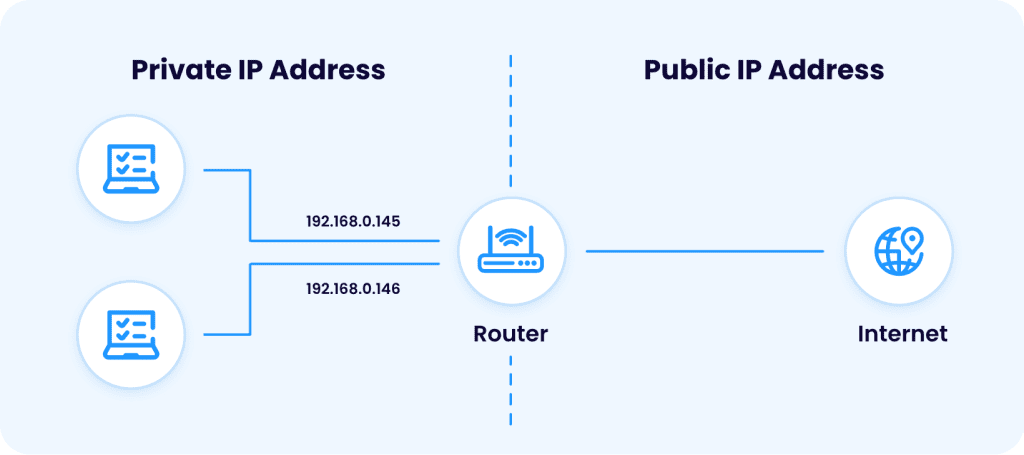
- Public IP Address – Provided by your internet service provider
- Private IP Address – Used within your home or office network
Example: 192.168.1.1
How to Find My IP Address
Fastest Methods:
- On Windows: Use Command Prompt (ipconfig)
- On Mac: Check Network settings
- On iPhone: Settings → Wi-Fi
- Online: Search “What is my IP”
This works for anyone asking how to find your IP address quickly.
How to Find IP Address on Computer (Windows)

If you’re wondering how to find ip address on computer, follow these methods:
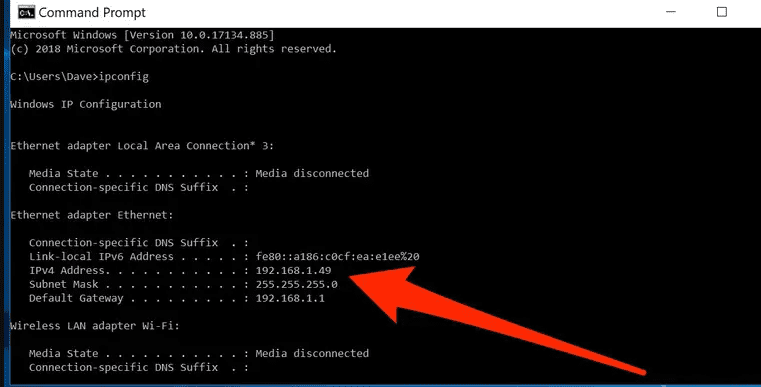
Method 1: Command Prompt
- Press Windows + R
- Type cmd and hit Enter
- Type ipconfig
- Look for IPv4 Address
Method 2: Network Settings
- Open Settings
- Go to Network & Internet
- Click your connection
- View IP details
This is the easiest way to find your computer’s IP address.
How to Find My IP Address on My Computer
Extra Tips:
- Use PowerShell (Get-NetIPAddress)
- Check Control Panel → Network Status
- Use third-party tools
How to Find IP Address on Mac

For users searching how to find ip address on mac:
Steps:
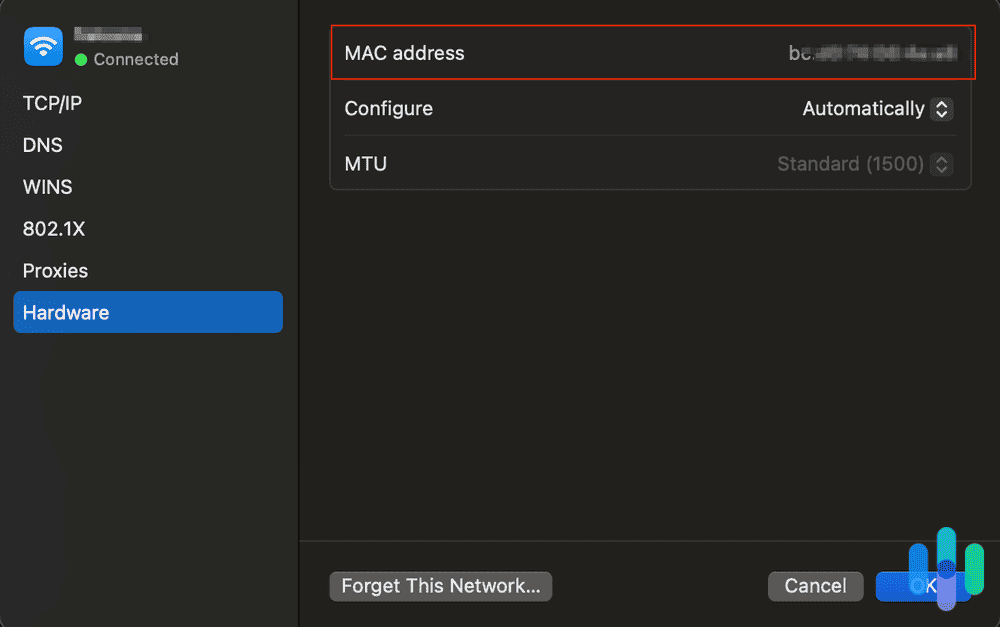
- Open System Settings
- Click Network
- Select your connection
- View IP address
This also answers:
- how to find ip address of a mac
- how to find the ip address in mac
How to Find IP Address on iPhone

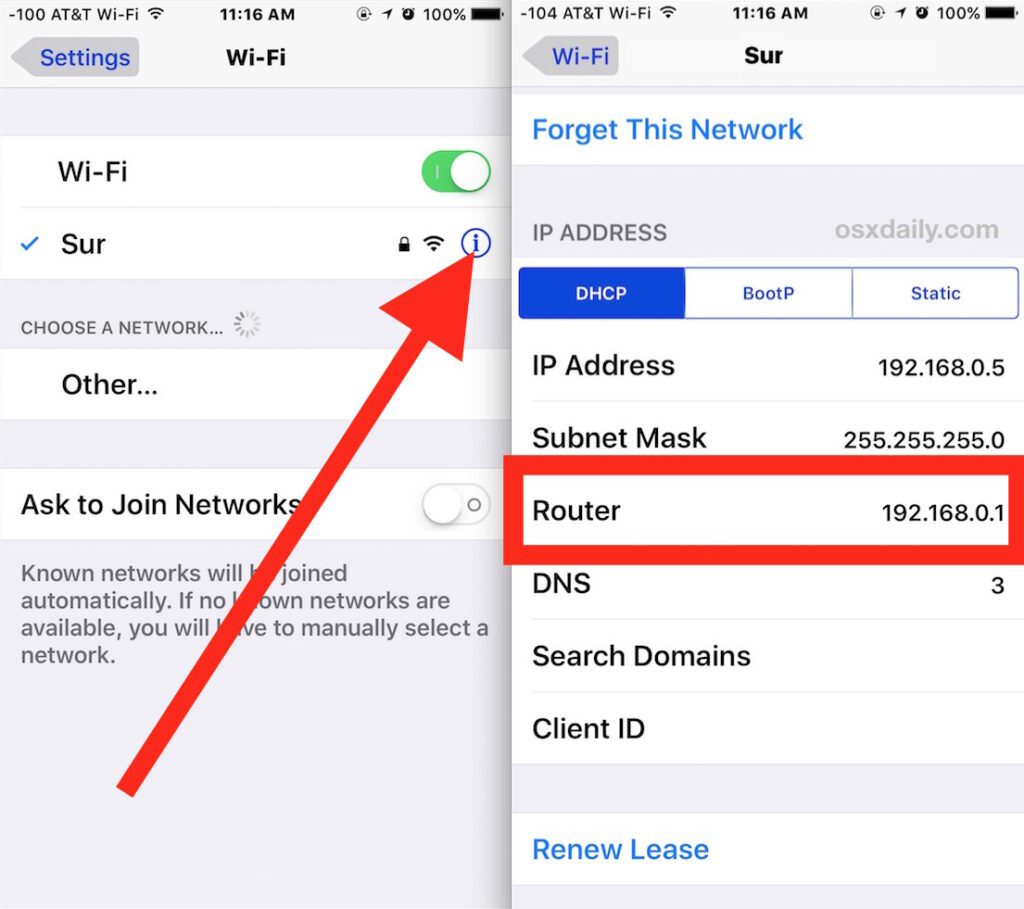
If you’re asking how to find ip address on iphone:
Steps:
- Open Settings
- Tap Wi-Fi
- Tap your connected network
- Scroll to see IP address
Works for all iPhones and iPads.
How to Find My Public IP Address

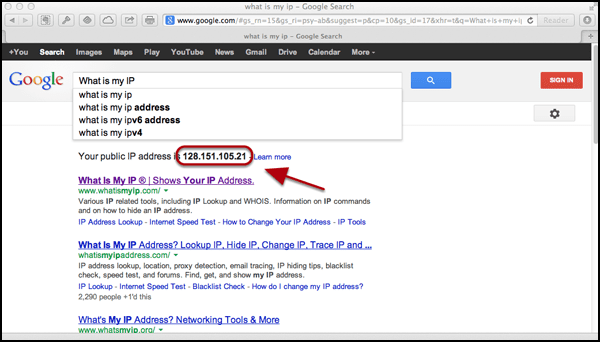
To check how to find my public ip address:
Methods:
- Google “What is my IP”
- Visit IP-check websites
- Use browser tools
This shows your internet-facing address.
How to Find Router IP Address
If you need how to find router ip address, here’s how:
Steps:
- Open Command Prompt
- Type ipconfig
- Look for Default Gateway
That number is your router IP.
How to Find Printer IP Address

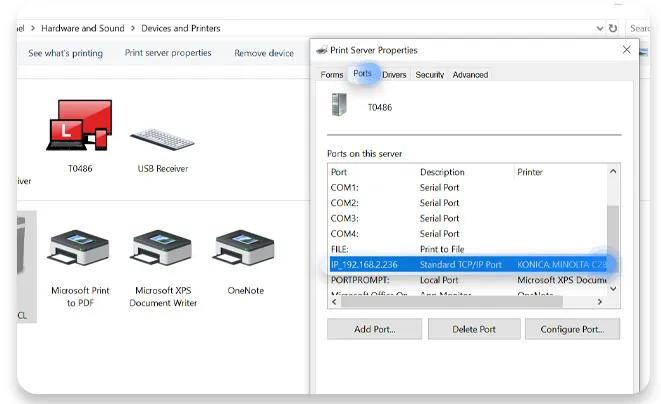
If you’re struggling with how to find printer ip address, try this:
Method 1:
- Open printer settings
- Check network info
2: Print Configuration Page
- Use printer menu
- Print network report
Method : Computer Settings
- Go to Devices & Printers
- Select printer → Properties
How to Find IP Address on Printer
Quick Tips:
- Check display panel
- Use router device list
- Use printer software
How to Find Roku IP Address

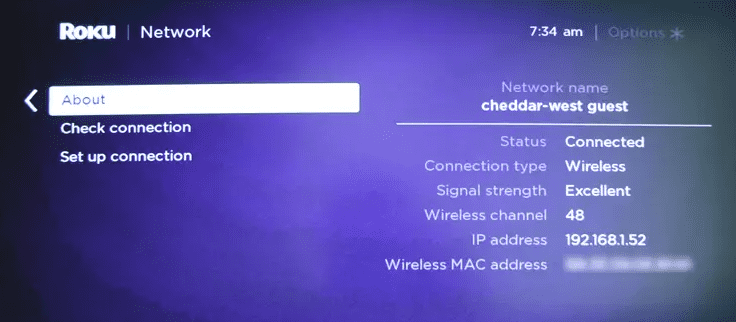
If you’re using Roku:
Steps:
- Go to Settings
- Select Network
- Click About
- View IP address
How to Find IP Address on Mac Using Terminal
Advanced users can try:
Steps:
- Open Terminal
- Type ifconfig
- Look for inet
How to Find Someone’s IP Address (Important Warning)
Many people search how to find someone’s IP address, but:
Important Facts:
- It’s restricted and privacy-sensitive
- Requires legal authority
- Not recommended without permission
At Tech Info Spot, we always promote ethical and legal tech usage.
How to Find Person by IP Address

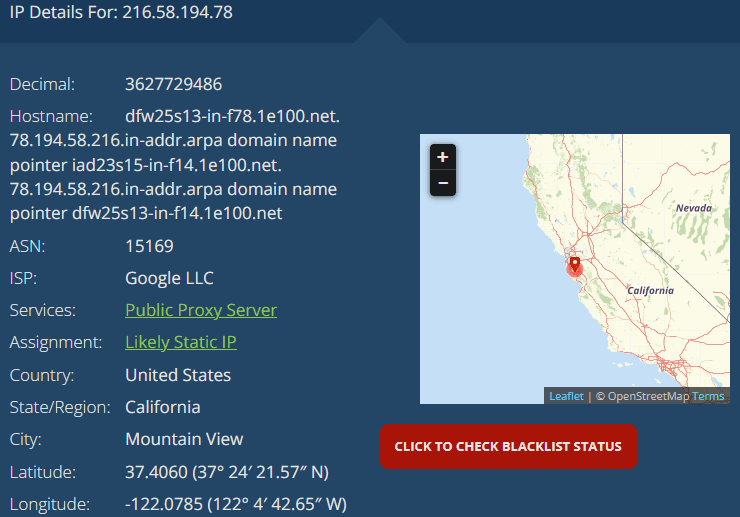
What You Can Do:
- Get approximate location
- Identify ISP
What You Cannot Do:
- Find exact identity
- Track personal details
Common Uses of IP Address
Why It’s Important:
- Network troubleshooting
- Device connection
- Router access
- Security monitoring
Common Mistakes to Avoid
Avoid These Errors:
- Confusing public vs private IP
- Sharing IP publicly
- Using incorrect commands
- Ignoring network settings
Pro Tips from Tech Info Spot
According to Tech Info Spot experts:
- Always double-check your IP
- Keep your network secure
- Use VPN for privacy
- Don’t share IP unnecessarily
Also Read How to Make a YouTube Channel on Phone in Minutes (2026 Guide) – Step-by-Step for Beginners
Quick Summary
- Use ipconfig on Windows
- Check Network settings on Mac
- Use Wi-Fi settings on iPhone
- Router IP = Default Gateway
- Printer IP via settings or network page
Final Thoughts
Learning how to find your IP address is a basic but powerful skill that can help you troubleshoot problems, connect devices, and manage your network easily.
At Tech Info Spot, our goal is to make technology simple and accessible for everyone.
Stay connected with Tech Info Spot for more helpful tech guides, tutorials, and expert tips
Also Read How to Jump Start a Car: A Complete Step by Step Guide for Every Driver